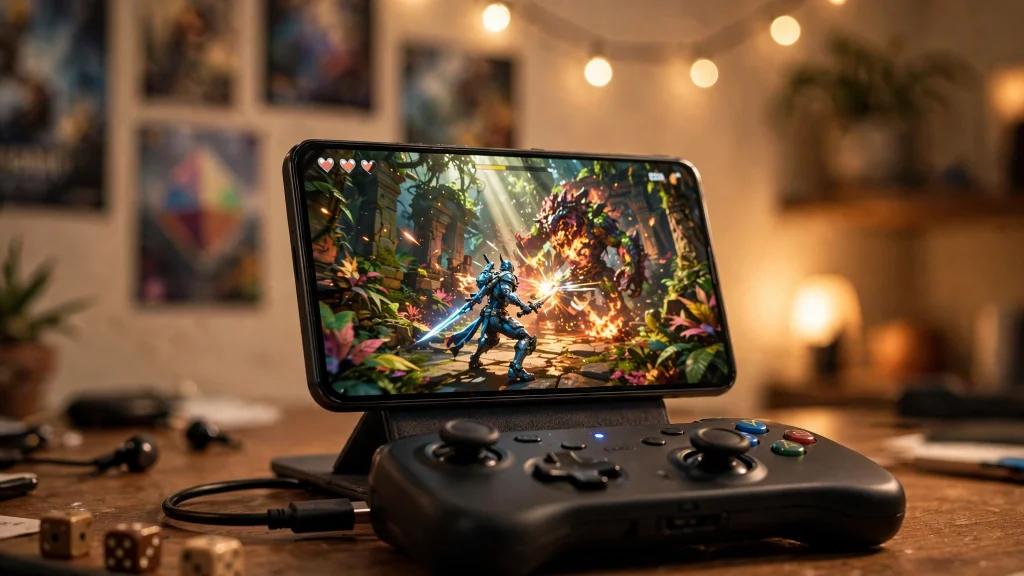
So you have GameHub Lite installed and a library of PC games you legally own, and now the big question: which ones will actually run well on your phone? GameHub Lite can run Windows games on Android, but not every title behaves the same. Some games feel like they were made for mobile. Others will fight you every step of the way.
This compatibility guide explains how to think about game compatibility, which genres and eras of games tend to work best, and how to test a game quickly before you invest hours in setup.
How Compatibility Works in Plain Terms
GameHub Lite runs Windows games through a compatibility layer, which is software that translates what a Windows game expects into something Android can understand. Think of it like a live translator between two languages. Simple, clear sentences translate easily. Long, idiomatic speeches get messy. The same logic applies to games.
Older and simpler games make fewer demands on the translation. Newer games use the latest graphics features, expect powerful hardware, and sometimes include anti-cheat or always-online systems that do not translate at all.
Genres That Run Best on GameHub Lite
Genre is the single best predictor of a smooth experience. These categories have the highest success rate:
- 2D indie games and platformers. Titles in the spirit of Stardew Valley, Terraria, Hollow Knight, or Celeste are light on system demands and map beautifully to touch controls or a gamepad.
- Turn-based strategy and tactics. Games like Civilization V, XCOM: Enemy Unknown, or Into the Breach do not care about frame rates and are perfect for touch screens.
- Classic RPGs. Older role-playing games such as Fallout: New Vegas, The Elder Scrolls III: Morrowind, or Divinity: Original Sin run well on modest hardware.
- Point-and-click adventures. Games built around mouse input translate naturally to a touch screen. Classics in this genre feel right at home on a phone.
- Older 3D action games. Well-optimized titles from the late 2000s and early 2010s, like Portal, Half-Life 2, or BioShock, often run surprisingly well once you tune the settings.
- Simulation and management games. Farming sims, city builders, and tycoon games are light on reflexes and heavy on menus, which suits mobile play.
Genres That Often Struggle
- Recent AAA open-world games. Massive worlds, advanced lighting, and huge memory needs overwhelm most phones.
- Competitive online shooters. Anti-cheat systems frequently refuse to run through compatibility layers, and online servers may block modified clients.
- Games with always-online DRM. If a game needs to phone home constantly to verify itself, the translation layer can break that handshake.
- VR titles. These need hardware your phone simply does not have. Skip them entirely.
- Games built for the newest DirectX versions. Older DirectX 9 and 11 titles have far better odds than the latest releases.
Well-Known Titles People Report Good Results With
Community reports are the best real-world compatibility data we have. The following widely known games are frequently reported as running well, though your results depend on your specific phone:
- Stardew Valley. Light, charming, and nearly perfect with touch controls.
- Terraria. Runs smoothly and plays great with a gamepad.
- Portal and Portal 2. Older Valve titles are famously well optimized.
- Half-Life 2. A classic that modest phones can handle.
- Fallout: New Vegas. Needs some settings tuning, but very playable.
- Civilization V. Turn-based and touch friendly.
- Hollow Knight. A demanding platformer that rewards a controller, but runs well.
- GTA: San Andreas and Vice City. Older open-world games that phones can manage.
Remember that compatibility can change with app updates, so treat community reports as guidance, not promises. Always use copies of games you legally own when testing.
How to Test a Game Before You Commit
- Import the game and launch it with default settings.
- Give it a full 60 seconds on a black or loading screen. First launches are slow.
- If it reaches the main menu, start a new game or load a save and play for five minutes.
- Watch for deal-breakers: constant crashes, unfixable graphical glitches, or single-digit frame rates.
- If it is close but not quite there, tune the settings before judging. Drop the resolution and disable effects first.
- If it still fails after tuning, check community reports for that specific title.
Quick Performance Tweaks for Borderline Games
- Lower the internal resolution. The single most effective change for both performance and stability.
- Switch the compatibility profile. Different profiles suit different game engines. Try each one for a struggling title.
- Disable overlays and background features. Anything running on top of the game adds translation work.
- Run the game in windowed mode. Full-screen exclusive modes translate poorly. Windowed is safer.
Good First Games for a New Install
If you just set up GameHub Lite and want quick wins, start with one title from each friendly category: a 2D indie platformer, a turn-based strategy game, and an older 3D classic. If all three run well, your phone and settings are in good shape.
Keep a simple note of what works. After a month of casual testing you will have a personal compatibility list tuned to your exact phone.
Building a Library That Plays Well
The smartest approach is to start with the easy wins. Pick two or three light, well-reported games and get them running perfectly. Learn the settings on games that cooperate. Once you are comfortable, try one harder title at a time.
Conclusion
Compatibility with GameHub Lite comes down to a simple rule: simpler and older games work best, newer and heavier games struggle. Stick to the friendly genres, test before you commit, tune the settings, and only use games you legally own.
Read next:
Pingback: How to Add and Import Windows Games in GameHub Lite
Pingback: GameHub Lite Controller Setup: Gamepad Mapping Guide
Pingback: Best GameHub Lite Settings for Low-End Android