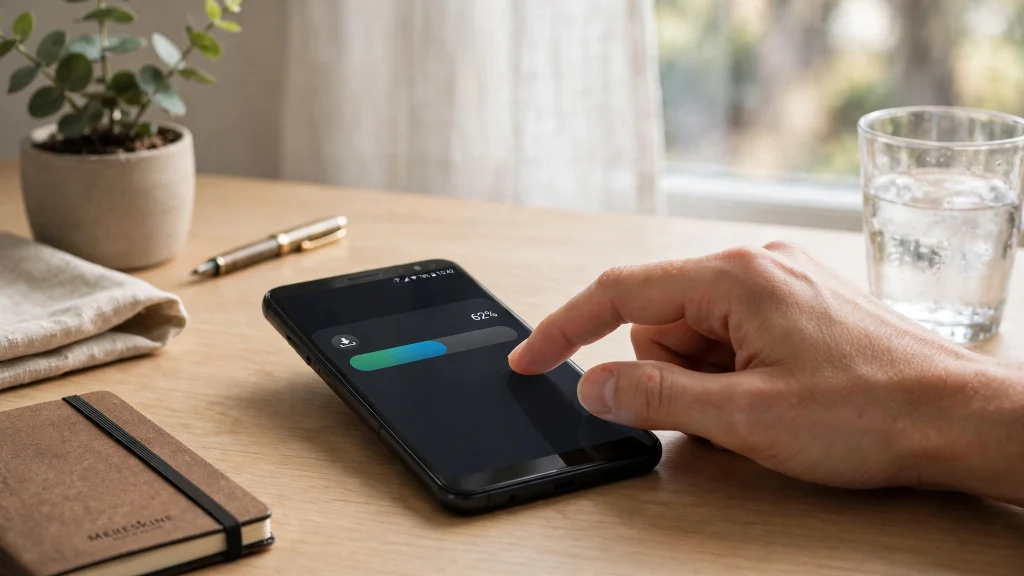
GameHub Lite does not update itself through the Play Store, so keeping it current is on you. That is not a big job, but it is worth doing right. New releases bring bug fixes, better game compatibility, and performance improvements, and a sloppy update is one of the easiest ways to lose your settings or break a working setup.
This guide shows you how to update GameHub Lite to the latest version safely: how to back up first, where to get the new release, how to install it without losing your games, and what to do if something goes wrong.
Why Bother Updating?
- Bug fixes. Crashes and glitches you have learned to live with may already be fixed upstream.
- Better compatibility. Compatibility layers improve over time, so games that barely ran on an old build may run smoothly on a new one.
- Performance gains. Updates often include optimizations that squeeze more frame rate out of the same phone.
- Security fixes. Any software benefits from patched vulnerabilities. Staying reasonably current is basic hygiene.
You do not need to update the hour a release drops. But checking every month or two keeps you in a healthy place.
Back Up First: Games, Saves, and Settings
Most updates go smoothly, but a backup turns “most” into a non-issue. Save these before you touch anything:
- Your game library folders. Your imported games live in folders on your device storage. Confirm you know where they are, and ideally keep a copy on your PC.
- Your save files. Game saves are the one thing you cannot replace. Copy the save folders for your active games to your PC or cloud storage.
- Your settings. Take screenshots of your per-game and global settings, or note the important ones (resolution, compatibility profile, controller mappings). Updates sometimes reset settings to defaults.
A good rule: if you cannot afford to lose it, it is backed up. If it is backed up, updates stop being scary.
How to Check Which Version You Have
Open GameHub Lite, go to its settings or about screen, and note the version number. Then visit the official GameHub Lite GitHub repo and compare it with the latest release listed there. If the numbers match, you are done. If the repo shows a newer release, it is update time.
While you are on the release page, skim the release notes. They tell you what changed, what was fixed, and whether the update touches anything you care about.
Step-by-Step: Installing the Update
GameHub Lite updates work like a fresh install over the top of your existing app. Your games and most settings survive the process when you do it correctly.
- Download the new APK from the official source only. Go to the official GameHub Lite GitHub repo, open the latest release, and download the APK file. Never update from a mirror site or a forwarded file.
- Verify the file if checksums are provided. Compare the checksum on the release page with your downloaded file.
- Do not uninstall the old version first. Installing over the top preserves your data. Uninstalling first wipes it.
- Open the APK file. Your phone will ask you to confirm the install or update. Approve it.
- Wait for the install to finish and open the app. Do not launch a game immediately.
- Check your settings first. Walk through the global and per-game settings and restore anything the update reset, using your backup notes or screenshots.
- Launch one game as a test. Pick a game you know well and play for a few minutes. If it runs normally, the update is good.
What to Do After a Successful Update
- Re-check controller mappings. Input settings are a common casualty of updates. Open the controller setup and confirm your mappings survived.
- Revisit performance settings. If the update changed rendering defaults, your old per-game tweaks may need reapplying.
- Delete the old APK file from your downloads folder to avoid confusion later.
- Note the new version number somewhere, so the next update check is quick.
When an Update Goes Wrong
- Clear the app cache. New versions can clash with old cached data. Go to Settings > Apps > GameHub Lite > Storage and clear the cache, then relaunch.
- Check the release discussion. Other users may have reported the same issue with a workaround.
- Roll back to your previous version. Uninstall the new version, reinstall the older APK you were using, and restore your settings from backup.
- Report the problem. If you can reproduce the issue, reporting it on the project’s GitHub helps everyone. Include your device model, Android version, and the exact steps that trigger the bug.
How Often Should You Update?
- Check for updates monthly. A quick look at the releases page takes thirty seconds.
- Install promptly when the notes mention fixes for your problems. If you have been fighting a crash that the new release addresses, update right away.
- Wait on major rewrites. If a release overhauls core systems, give the community a week to shake out surprises before you jump in.
- Skip nothing for too long. Falling a year behind means jumping across many changes at once, which is when things break.
Conclusion
Updating GameHub Lite is simple when you follow the order: back up your games, saves, and settings, download only from the official GitHub repo, install over your existing app, verify your settings, and test with one game. That routine takes fifteen minutes and protects everything you have built.
Read next: